Download estatego app then enter the property code provided by your facility manager to register
Your name, email, phone number, and the property code from your facility manager or property owner .
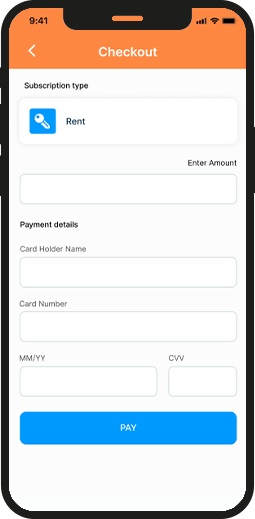
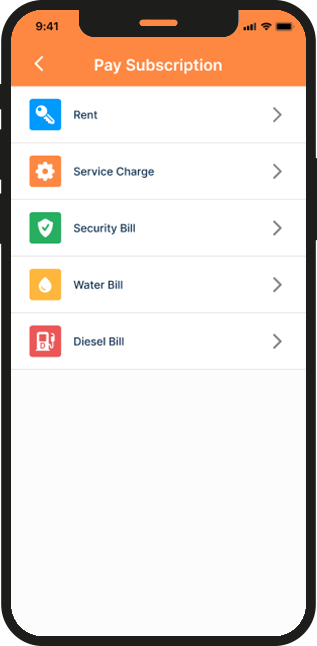
Yes—EstateGo supports secure payments for rent, service fees, and utilities
Go to “manage power,” select the utility option, then follow steps to recharge or pay.
Go to Visitor Management → “Add Visitor ,” enter visitor’s details to generate a pass code to be presented by the visitor to the security
Yes—once you have been approved an in-app chat option becomes available .
Yes, update your contact info, profile photo,primary emergency contact and password under the Profile settings.
Use the “Forgot Password” link on the login screen to reset via email.
Navigate to Maintenance → “New Request,” describe the issue, attach photos as evidence.
Yes—all past requests are listed under Maintenance history.
Use the attachment feature in the maintenance request interface.
Yes—check the “Payments” section to view all past transactions.
Yes—bank transfers are supported
Yes—view, edit, or cancel visitor under “My Visitors.”
Yes—check the Announcements section of the dashboard for official notices and announcements.
Yes—use the chat feature to contact facility manager
No—tenant-to-tenant chat is typically disabled for privacy
No—you can only share photos on the in-app chat feature
Yes—access, view and sign the agreement documents in the agreement tab.
You can use another device to login to your account and change password.
Reach out to support via email/Call on [email protected] / +234 8033 011 305
From your Resident Dashboard, open the left navigation menu*, then click on “Support”. There, you’ll find Frequently Asked Questions (FAQs) and helpful how-to videos to guide you.
No- they must have pass code generated by you for an approval by the security before entry.
Download EstateGO for Free
Get instant access to the EstateGO app on both the Apple App Store and Google Play Store! Manage your properties, stay connected, and simplify your tasks—all in one app. Download now and experience seamless property management at your fingertips!